.png?width=250&height=54&name=ORIS%20logo%20Horizontal%20Colours%20(1).png)
This article explains model versioning and assessment versioning in ORIS, two distinct but linked systems. It covers what versioning does, how versions are created and managed, and how access permissions affect version actions.
Versioning in Material Assessments
Versioning in the open BIM Module
Why versioning matters
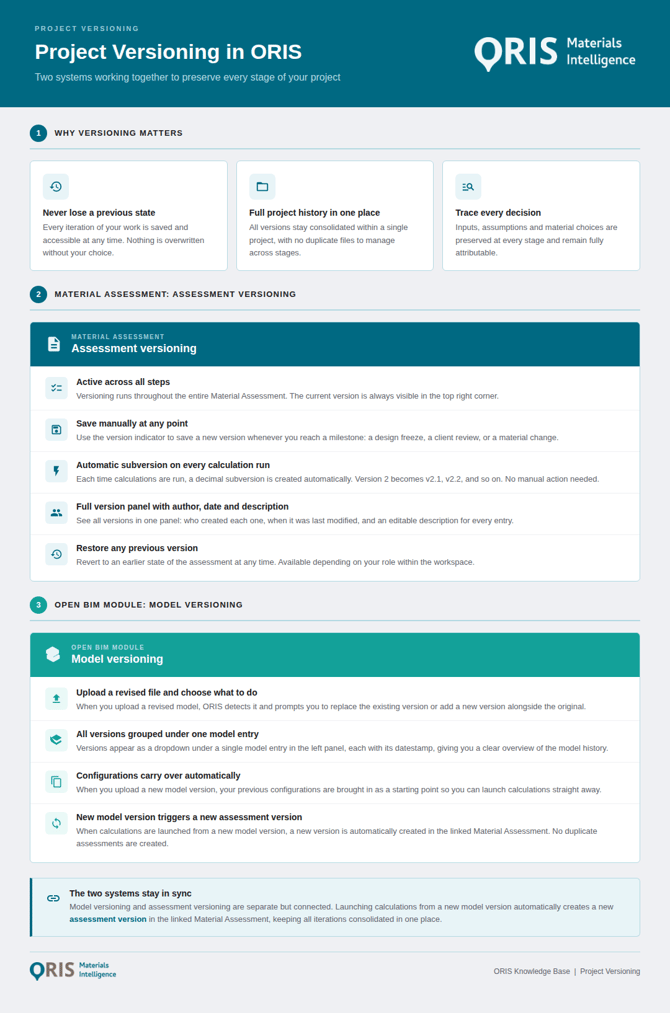
Design and assessment work is iterative. Quantities change, models are updated, material choices evolve, and decisions made early in a project need to remain traceable at the end of it. Versioning in ORIS is built around this reality.
By keeping all iterations within a single assessment, versioning gives you a structured record of how your project evolved, without the need to maintain separate assessments for each stage. Specifically, versioning allows you to:
- Preserve design changes and calculation history
- Preserve the inputs and assumptions that underpinned each iteration
- Maintain a link between each BIM model version and its results
- Restore a previous state if a design direction changes
- Keep your assessment history consolidated in one place, rather than across multiple files
Versioning in Material Assessments
Assessment versioning tracks the calculation and input history within a Material Assessment, and is active across all steps of a Material Assessment. The current version is always visible in the top right corner of any step prior to the Results Dashboard.
CREATING AN ASSESSMENT VERSION
Versions in a Material Assessment are created in two ways:
- Manually, at any point, by saving a new version from the version indicator in the top right corner. Use this to mark a significant change or a milestone in the assessment.
- Automatically, whenever calculations are run. Each calculation creates a subversion, numbered as a decimal increment of the parent version (e.g., version 2 becomes 2.1, 2.2, …etc).
MANAGING ASSESSMENT VERSIONS
Clicking the version indicator opens the version panel on the right side of the screen. From here you can see:
- All versions associated with the assessment
- Who created each version
- The date each version was last modified
- The version description, which can be edited directly from the panel
Depending on your role within the workspace, you may also be able to restore a previous version. This makes it possible to revert to an earlier state of the assessment if needed.
Permissions apply to version actions
The ability to view, access, or restore previous versions depends on your role within the Material Assessment. If certain version actions are not available, please check your permissions with the assessment owner or co-owners.
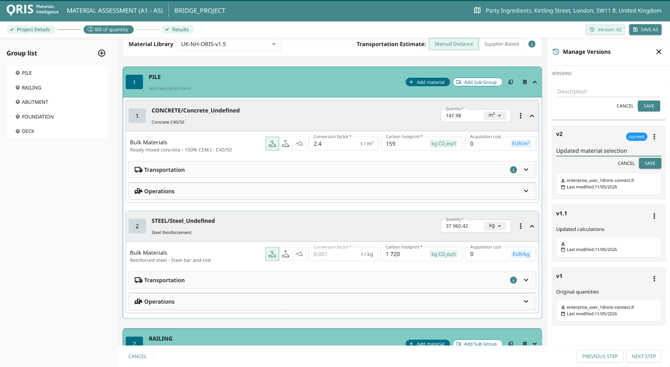
Assessment versioning panel in a Material Assessment.
Versioning in the open BIM Module
UPLOADING A NEW MODEL VERSION
The open BIM Module tracks versions at the model level. When you upload a revised file of a model that already exists in the open BIM Module, ORIS prompts you to either replace the existing version or upload the revised model as a new version alongside the original.
To upload a new version of an existing model, click Upload in the top right corner of the viewer, and drag your revised file into the window. ORIS will detect that the filename matches an existing model and prompt you to choose how to handle the upload. Select upload as a new version rather than replacing the existing one.
Uploading as a new version gives you two key advantages:
- All model versions are grouped together in the left panel under a single model entry, expandable as a dropdown listing each version with its datestamp. This gives you a quick overview of the model's history without leaving the panel, and the ability to access any version at any time.
- Any configurations from the previous model version are carried over to the new one, so you can immediately launch new calculations without re-defining your configuration.
Each version manages its own configurations
When you upload a new model version, ORIS brings in the configurations from the previous version as a starting point. From there, any new configurations or changes made within one version remain local to that version and will not appear in any other.
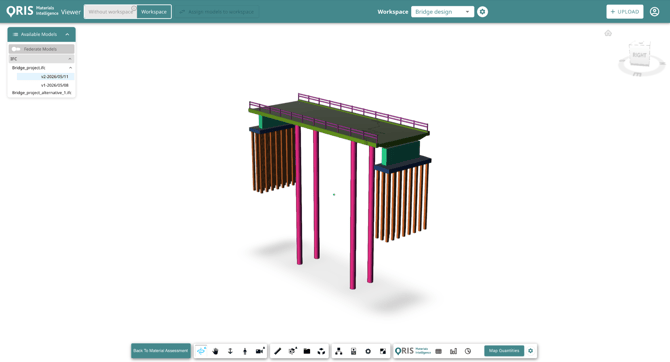
Model versioning in the viewer of ORIS open BIM Module.
VIEWING AND MANAGING MODEL VERSIONS
For full model version management, click the settings icon in the global navigation bar of the open BIM Module, next to the workspace selection dropdown. This opens a dedicated panel listing all models available in the selected workspace. From here you can see all model versions of a selected model, when each was last updated, and, depending on your role within the workspace, download or delete individual versions.
HOW MODEL VERSIONS CONNECT TO ASSESSMENT VERSION
Model versioning and assessment versioning are separate systems that stay in sync. In ORIS, each configuration on a BIM model version generates its own Material Assessment. When you upload a new model version, ORIS does not create new Material Assessments. Instead, it adds new assessment versions to the existing Material Assessments linked to each configuration from the previous model version. This keeps all design iterations consolidated in one place.
The same applies when you update a configuration within an existing model version: ORIS automatically generates a new assessment version in the linked Material Assessment to capture those changes.
SUMMARY
The table below summarises what happens to model versioning in the open BIM Module and to assessment versioning in linked Material Assessments for each of the following actions.
|
Action |
Impact on open BIM Module versioning |
Impact on Material Assessment versioning when launching calculations |
|
Replace an existing model version |
Previous model version overwritten. Configurations from the previous model version remain available. |
New assessment versions added to existing linked Material Assessment when launched from an existing configuration. |
|
Upload a new model version |
New model version added under the same model entry. Configurations from the previous model version are brought into the new version. |
New assessment versions added to existing linked Material Assessment when launched from an existing configuration. |
|
Update a configuration on an existing model version |
Updated configuration is only available on the model version it was created from. |
New assessment version created in the linked Material Assessment. |
|
Create a new configuration on an existing model version |
New configuration is only available on the model version it was created from. |
New Material Assessment created and linked to that configuration (and model version). |