.png?width=250&height=54&name=ORIS%20logo%20Horizontal%20Colours%20(1).png)
| The accuracy of the ORIS AI BoQ depends directly on how your source file is structured. The AI reads your file as it is, without correcting inconsistencies or inferring missing information. A well-prepared file means fewer manual corrections and a faster path to your carbon assessment in ORIS. |
2. Structuring Hierarchy in Your Excel File
3. Working with Multi-Scenario Files
1. General File Preparation
Before uploading, review your file with the extraction in mind. The goal is to make the structure as unambiguous as possible so the AI can identify what belongs where.
KEEP THE FILE FOCUSED
- Include only the sections relevant to the carbon assessment. Remove or separate disciplines that are not in scope for this assessment.
- Avoid federated or combined files where possible. A focused file covering one discipline or package will produce a cleaner extraction than a large multi-discipline file.
- Remove or minimise blank rows. They do not affect the final extraction but increase processing time on large files.
MATERIAL DESCRIPTIONS
- Use specific, descriptive material names. The AI uses these descriptions to propose matches in the carbon database, so the more precise the label, the higher the confidence of the match.
- Align naming conventions with the terminology used in your target carbon database where possible. Familiar terms produce better matches with less manual correction.
Material naming
|
Avoid |
Prefer |
|
Avoid |
Prefer |
Tip: When a material specification is missing
In early design phases, material specifications are not always defined. When this is the case, apply conservative assumptions by selecting a material likely to overestimate rather than underestimate the carbon impact. This avoids underreporting emissions and can always be updated as the design develops.
To reduce this gap over time, consider building a set of typical material assumptions for common structural elements used in your projects, so your team has a consistent starting point when specifications are incomplete.
QUANTITIES AND UNITS
- Ensure every material line item has an explicit quantity value in a dedicated column. Quantities embedded within text descriptions cannot be reliably extracted.
- Use consistent unit labelling throughout the file. Mixed units for the same material type across rows will require manual correction after extraction.
- Do not include totals or subtotal rows in the same column as line item quantities without a clear label distinguishing them, as these can be misread as material entries.
2. Structuring Hierarchy in Your Excel File
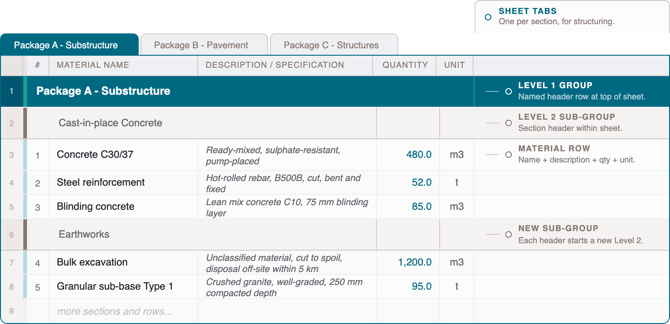
The hierarchy the AI builds in ORIS reflects the structure it finds within the content of your file. The AI reads all sheets together as a single body of text: it does not use sheet tab names as structural input. What drives the hierarchy is the text content inside the sheets: header rows, section titles and row organisation.
There is no limit on the number of header rows or section headers you can use: the more structured your file content, the more granular the hierarchy in ORIS.
USE A NAMED HEADER ROW TO DEFINE EACH TOP-LEVEL GROUP
The most reliable way to signal a top-level group to the AI is to include a clear, prominent header row at the very top of each sheet, naming the section or package that sheet covers. This is what the AI reads to build the top level of the hierarchy.
Sheet header row
|
Avoid No header row, or a generic title like 'Quantity Management' |
Prefer A clear row naming the group, e.g. 'Package A - Earthworks' or 'Foundation - Baseline' |
- Use a distinct, descriptive name in the header row of every sheet. Generic or repeated titles prevent the AI from distinguishing between sections.
- Include the scenario or category name if your file covers multiple scenarios or design alternatives, for example 'Foundation Baseline' and 'Foundation Alternative' on separate sheets.
SECTION HEADERS WITHIN A SHEET
- Use clear row-level headers to introduce sub-sections within a sheet. The AI can detect these and use them to create a second level of grouping beneath the top-level group.
- Keep sub-section headers visually and textually distinct from material line items. A header that looks like a material row may be included in the extraction as a material.
WHEN YOUR FILE HAS AN UNUSUAL STRUCTURE
Some BoQ files are structured horizontally, with work packages or sub-elements across columns rather than rows. In these cases, consider preparing a reformatted version of the file before uploading. A pivot table is an effective way to convert a horizontal structure into a vertical one that the AI can read correctly, without altering the underlying data.
Tip
If your file was produced for a client reporting format that does not match a clean vertical structure, create a separate version specifically for the ORIS upload. A small reformatting effort upfront saves significant manual correction time after extraction.
3. Working with Multi-Scenario Files
The ORIS AI BoQ feature supports files that contain multiple scenarios, design alternatives or construction packages within a single workbook. Each scenario should be clearly separated and labelled so the AI can distinguish between them.
- Assign each scenario its own sheet with a clear header row that names both the category and the scenario.
- Once extracted, you can choose to initialise separate ORIS projects for different scenarios, or select specific sections from the extraction to include in a single assessment.
- The same extraction can be used to run assessments against different carbon databases without re-uploading, making scenario comparison straightforward.
Note
If two scenarios share the same sheet header or are combined on a single sheet without clear section separators, the AI may merge them into a single group. Always verify the extraction output before proceeding to mapping.