.png?width=250&height=54&name=ORIS%20logo%20Horizontal%20Colours%20(1).png)
Transportation Calculations Options in ORIS
Manual Distance (Quick & Automated Estimation)
Supplier-based (Detailed Evaluation)
How to Perform Transportation Calculations in ORIS
Manual Distance Approach
Supplier-Based Approach
Transportation Calculations Options in ORIS
The method you choose should align with project stage and availability of supplier data: early-stage designs often rely on rapid estimates, while detailed reporting can leverage geolocated suppliers for project-specific accuracy.
Once material quantities are defined in the Bill of Quantities (BoQ), transport calculations can be performed in two ways:
Manual Distance (Quick & Automated Estimation)
- Transport calculation inputs are already available within the BoQ page.
- Uses default assumptions including transport mode, average haulage distances, emission factors (kgCO₂e per t·km), and optional cost per t·km.
- Fully automated: results are generated immediately based on BoQ data and default assumptions. However you can customize assumptions if needed, modifying the transport mode & type and the transportation distance.
- Supports multimodal transport by allowing multiple legs per material line with different modes (road, rail, ship).
Ideal for:
Early-stage design when detailed supplier data is unavailable and conservative assumptions are sufficient for rapid carbon estimates.
Supplier-based (Detailed Evaluation)
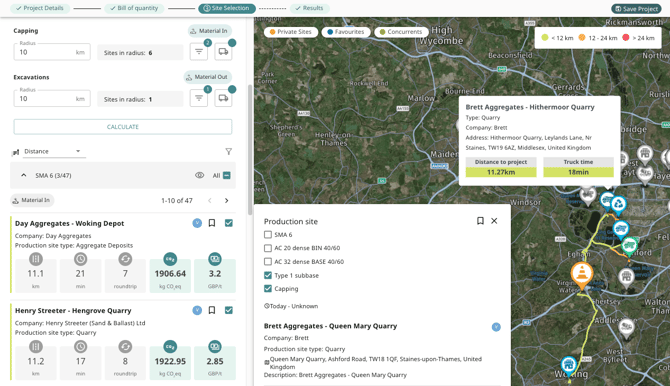
- You will be redirected to the Site Selection page, a dedicated interface where ORIS’ database of 50,000+ geolocated suppliers is used to identify production sites near your project.
- Customise your search per material by defining search radius, site types, and truck parameters.
Manual adjustments may be required to trigger calculations and refine the results depending on how the BoQ is structured and how material quantities are defined, particularly for truck loads.- Material unit is tonnes: ORIS automatically sets the truck load equal to the truck capacity.
- Material units differ from tonnes (e.g., m³, m², or linear meters): ORIS does not provide a default truck load. You must manually enter the truck load in the material’s unit to ensure correct transport emissions.
- ORIS provides potential suppliers but does not verify whether the specific product is manufactured or available at those sites.
Ideal for:
Detailed LCA reporting and modelling realistic sourcing scenarios at advanced project stages.
How to Perform Transportation Calculations in ORIS
Manual Distance Approach
To integrate flexible transportation calculation within a Material Assessment, follow these 3 steps :
- Navigate to the Bill of Quantity step in your Material Assessment.
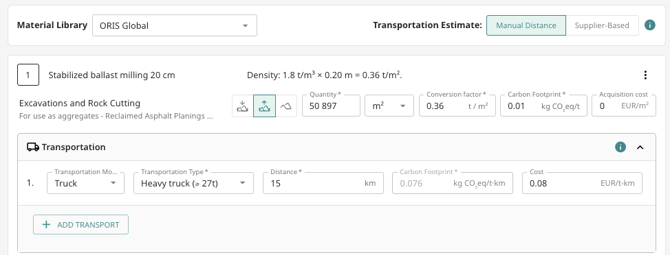
- Ensure that the transport estimate is set to “Manual distance”.
- For a specific material line, click on “Transportation”, then:
- Specify the transport details by selecting the transport mode (e.g., truck, ship, train) and the transportation type from the available dropdown menus.
- Adjust the distance assumption as necessary.
- (Optional) Enter the specific cost per t.km.
(Optional) To define additional transportation legs, click “+ Add Transport” and repeat steps 2 through 4 for each subsequent transport leg.
Supplier-Based Approach
To accurately incorporate supplier-derived transportation calculations into a Material Assessment, follow these 7 steps:
-
Access the Bill of Quantity step within your Material Assessment.
-
Verify that the transport estimation method is explicitly set to "Supplier-Based".
-
Proceed to the subsequent step, "Site Selection".
-
For each material line requiring assessment:
-
Define the Search Radius.
-
Filter Linked Sites: Click the filter button to adjust and refine the sites associated with the defined search criteria.
-
Refine Truck Parameters: Click on the truck icon to configure detailed parameters (e.g., truck type, fuel type, cost per day) and Specify Truck Load (if necessary).
-
-
Repeat steps 1 through 4 for every material included in the assessment.
-
Initiate the process by clicking "Calculate".
-
Refine Selected Sites: After calculation, finalize the selected sites for each material. This can be done by using the checkbox in the list view or by clicking directly on the sites displayed on the map.
Helpful Tips:
-
Modify Search Parameters:
To change the search settings, locate and click “Modify my search” in the upper left corner of the left-hand panel (you may need to scroll up). -
Time-Saving Site Selection:
Use the “All” checkbox to quickly deselect all current sites, which simplifies the subsequent refinement of your specific selections.